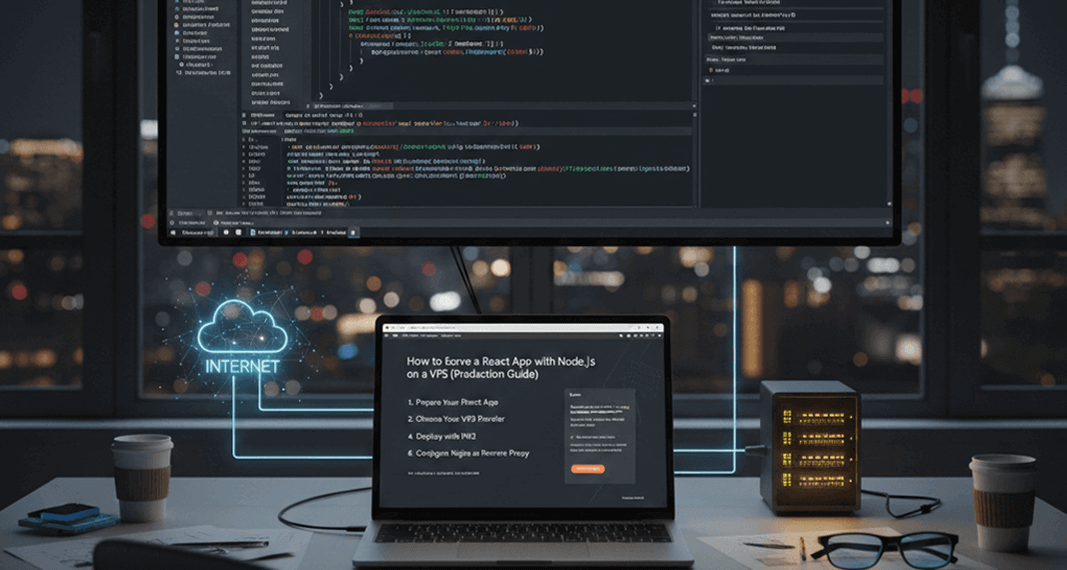
Learn how to properly deploy and serve a React application using Node.js on a VPS. This step-by-step production guide covers building React, serving it with Express, using PM2, and configuring Apache or Nginx for a secure and scalable setup.
Introduction
When deploying a React application on a VPS, many developers make the mistake of running the development server
(npm run dev) in production. This approach is insecure, slow, and not meant for real users.
The correct way is to build the React app once and then serve the static build using Node.js (Express) along with a reverse proxy like Apache or Nginx.
In this blog post, we’ll walk through the best production setup to serve React with Node.js on a VPS.
Why You Should Not Use React Dev Server in Production
The React development server is designed only for local development.
Problems with npm run dev in production:
- ❌ Poor performance
- ❌ Security risks
- ❌ High memory usage
- ❌ Not SEO-friendly
- ❌ Not scalable
Instead, always use a production build.
Recommended Production Architecture
Here’s the ideal setup
User → Domain → Apache/Nginx → Node.js (Express) → React BuildTools Used:
React (Vite or CRA)
Node.js + Express
PM2 (Process Manager)
Apache or Nginx (Reverse Proxy)
VPS (Ubuntu recommended)
Project Folder Structure
A clean structure keeps deployment simple:
project/
├── backend/
│   └── server.js
├── frontend/
│   ├── src/
│   ├── package.json
│   └── dist/ (or build/)
Step 1: Build the React App
Navigate to the frontend folder:
cd frontend
npm install
npm run build
This creates a production-ready folder:
- dist (Vite)
- build (Create React App)
Step 2: Serve React Using Node.js (Express)
Create or update server.js in the backend folder:
import express from "express";
import path from "path";
import cors from "cors";

const app = express();
const __dirname = path.resolve();

app.use(cors());

// API route example
app.get("/api/health", (req, res) => {
  res.json({ status: "API is running" });
});

// Serve React build files
app.use(express.static(path.join(__dirname, "../frontend/dist")));

app.get("*", (req, res) => {
  res.sendFile(
    path.join(__dirname, "../frontend/dist/index.html")
  );
});

const PORT = process.env.PORT || 3000;
app.listen(PORT, () => {
  console.log(`Server running on port ${PORT}`);
});
This setup ensures:
- React handles frontend routing
- Node handles API requests
- Clean fallback for React Router
Step 3: Run Node Server with PM2
PM2 keeps your Node app running even after crashes or server restarts.
Install PM2:
npm install pm2 -g
Start the app:
pm2 start backend/server.js --name react-node-app
pm2 save
pm2 startup
Step 4: Configure Apache as a Reverse Proxy
Enable required modules:
sudo a2enmod proxy proxy_http
sudo systemctl restart apache2
Virtual host configuration:
<VirtualHost *:80>
ServerName yourdomain.com

ProxyPreserveHost On
ProxyPass / http://127.0.0.1:3000/
ProxyPassReverse / http://127.0.0.1:3000/
</VirtualHost>
Now your domain will point to the Node server securely.
Final Result
🌐 Website loads React app
⚙️ APIs served by Node.js
🔁 PM2 manages uptime
🚀 Optimized production performanceCommon Mistakes to Avoid
❌ Running npm run dev on VPS
❌ Exposing Node port publicly
❌ Not using PM2
❌ Missing React route fallback
❌ Uploading node_modules to production
Conclusion
Serving React with Node.js on a VPS is simple and powerful when done correctly. By building the app once, serving it through Express, managing it with PM2, and using Apache or Nginx as a reverse proxy, you get a fast, secure, and production-ready deployment.